
What In-Gate Pass is
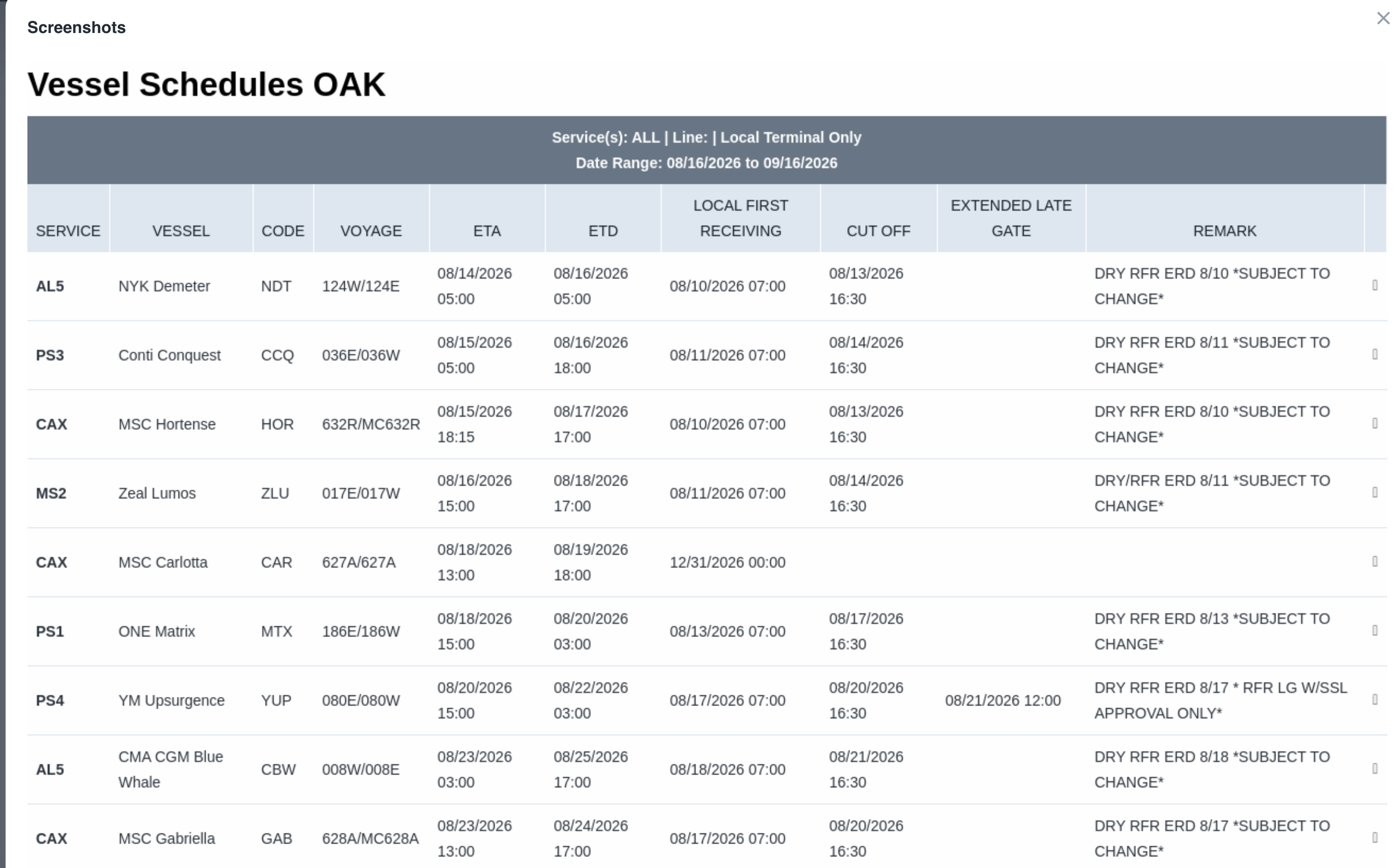
Terminal schedule pages change constantly, and once a date moves there is usually no record of what it said before. In-Gate Pass keeps a dated snapshot of the terminal's own schedule page, so you can look up what the terminal was showing on a specific date - a receipt you can point to when a receiving date or cut-off is questioned.
Who it is for
- Exporters - confirm what a terminal published for a receiving date or cut-off before you committed cargo, and resolve a "the date changed" dispute with a dated record.
- Drayage teams - verify the gate and cut-off information a terminal was showing for the day you planned a move.
How to use it
- Open In-Gate Pass.
- Choose the terminal you need.
- Pick the date you want to see.
- Open the snapshot for that terminal and date to see exactly what the terminal's schedule page showed then.
What a snapshot shows
Each snapshot is a captured view of the terminal's own schedule page as it appeared on that date - the vessels, receiving dates, and cut-offs the terminal was publishing at that moment. It is a point-in-time record, not a live feed.
Access
In-Gate Pass is an add-on. If you do not see it and would like it enabled for your account, contact your TradeLanes contact.