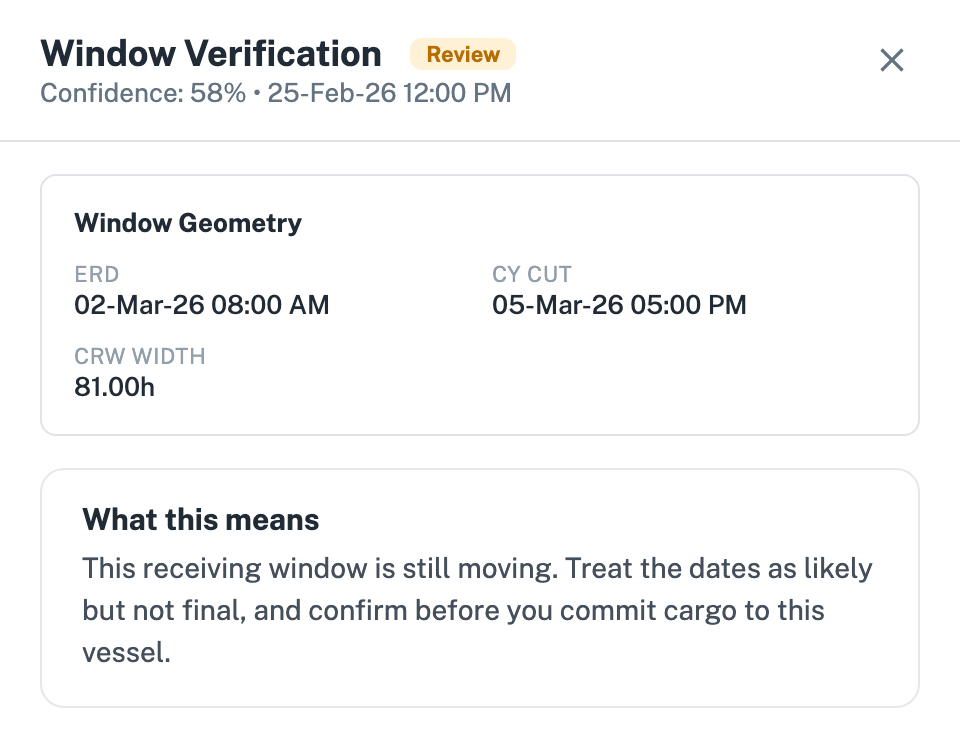
What Verified Windows tells you
Published receiving dates move, sometimes right up to the cut. Verified Windows answers the question you actually care about: can I trust this vessel's receiving window enough to commit cargo to it? Each vessel carries a status on its ERD so you can tell the settled windows from the ones still in motion.
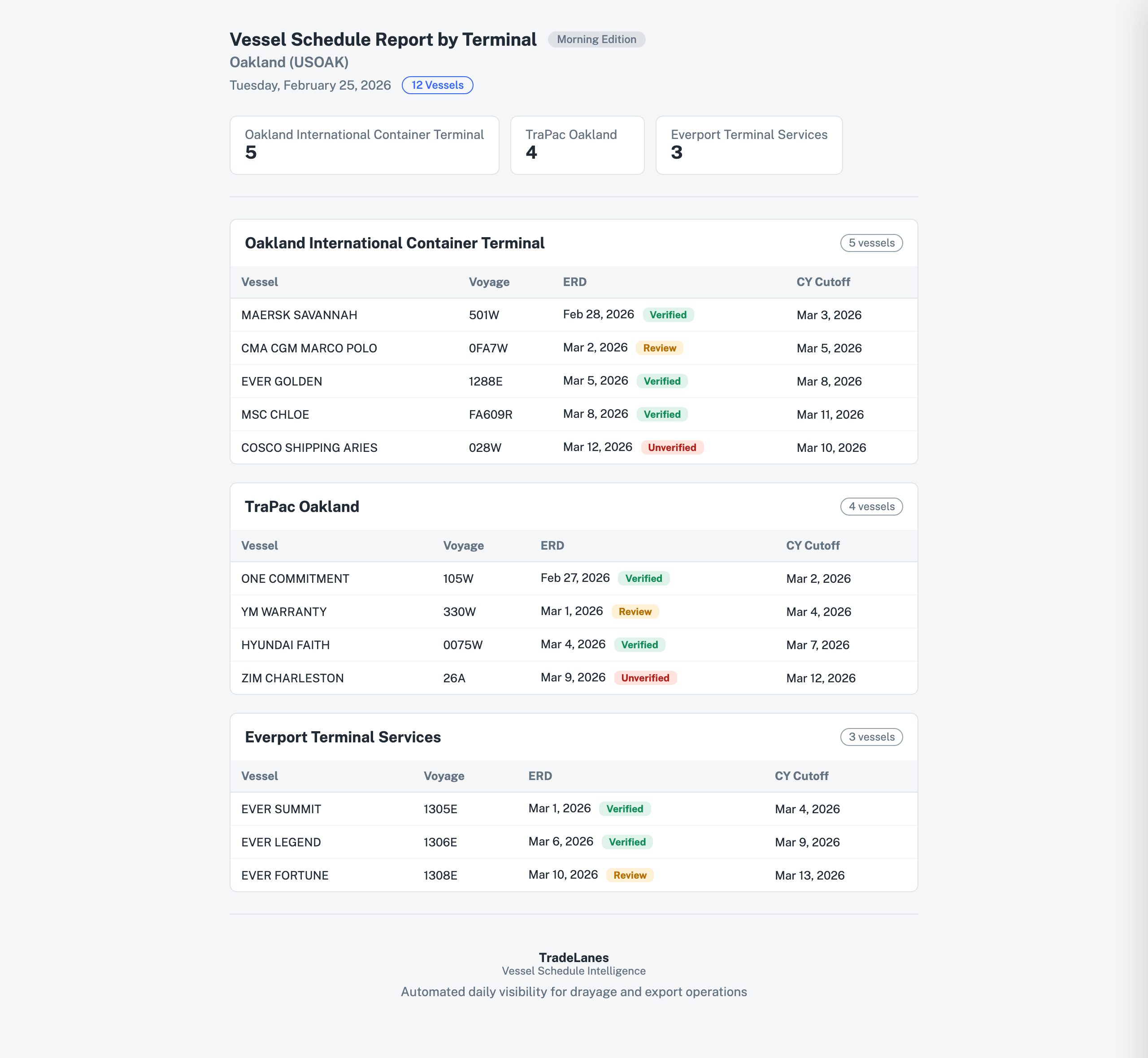
Reading the statuses
- Verified (green) - the receiving window is confirmed. You can plan and commit cargo against it.
- Review (amber) - the window needs a second look before you commit; treat the dates as likely but not final.
- Unverified (red) - the window is not confirmed. Treat the dates as provisional and keep buffer.
How to act on it
- Commit the Verified rows - these are the vessels you can plan your week around.
- Double-check the Review rows before you dispatch - a quick confirmation now avoids a reroute later.
- Hold buffer on the Unverified rows - do not commit to the earliest date until the window settles.
Where it appears
The status sits on each vessel's ERD in your Vessel Schedule Report by Terminal, so the trust signal is right next to the date you are planning against - no separate tool to check.
Open the window detail
Click any status to open the window detail - the receiving window (ERD, CY Cut, and window width) and a plain-language read on what to do next.