
Two ways to add teammates
Everyone on your company account shares the same workspace, and each person keeps their own saved filters and default view.
Option 1: Same-company sign-up (automatic)
Anyone who signs up with an email on your company's domain is added to your company's account automatically - no invite needed. Have them sign up at the same place you did, and they land in your shared workspace.
Option 2: Invite from Settings
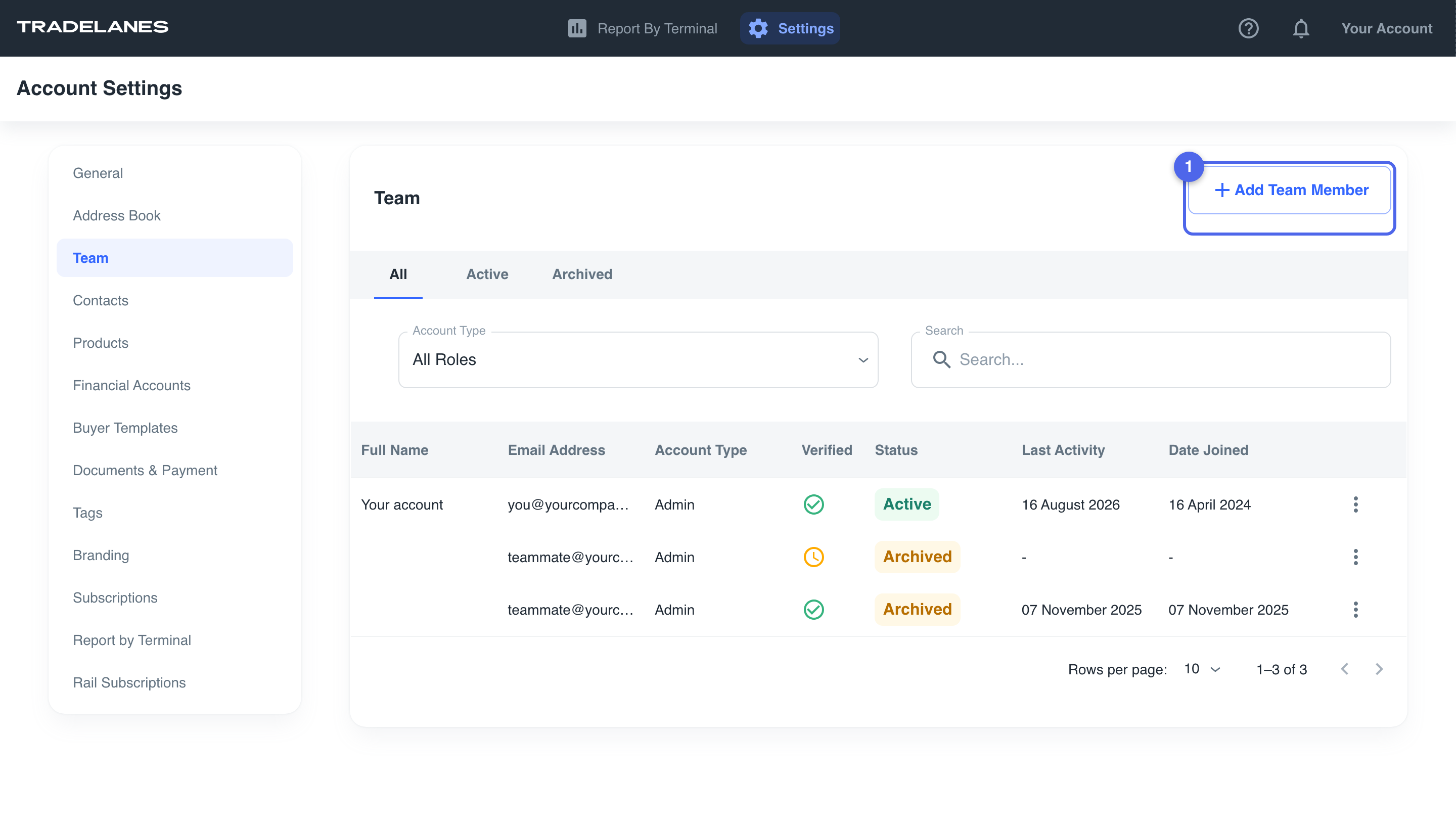
- Go to Settings -> Team.
- Click Add team member.
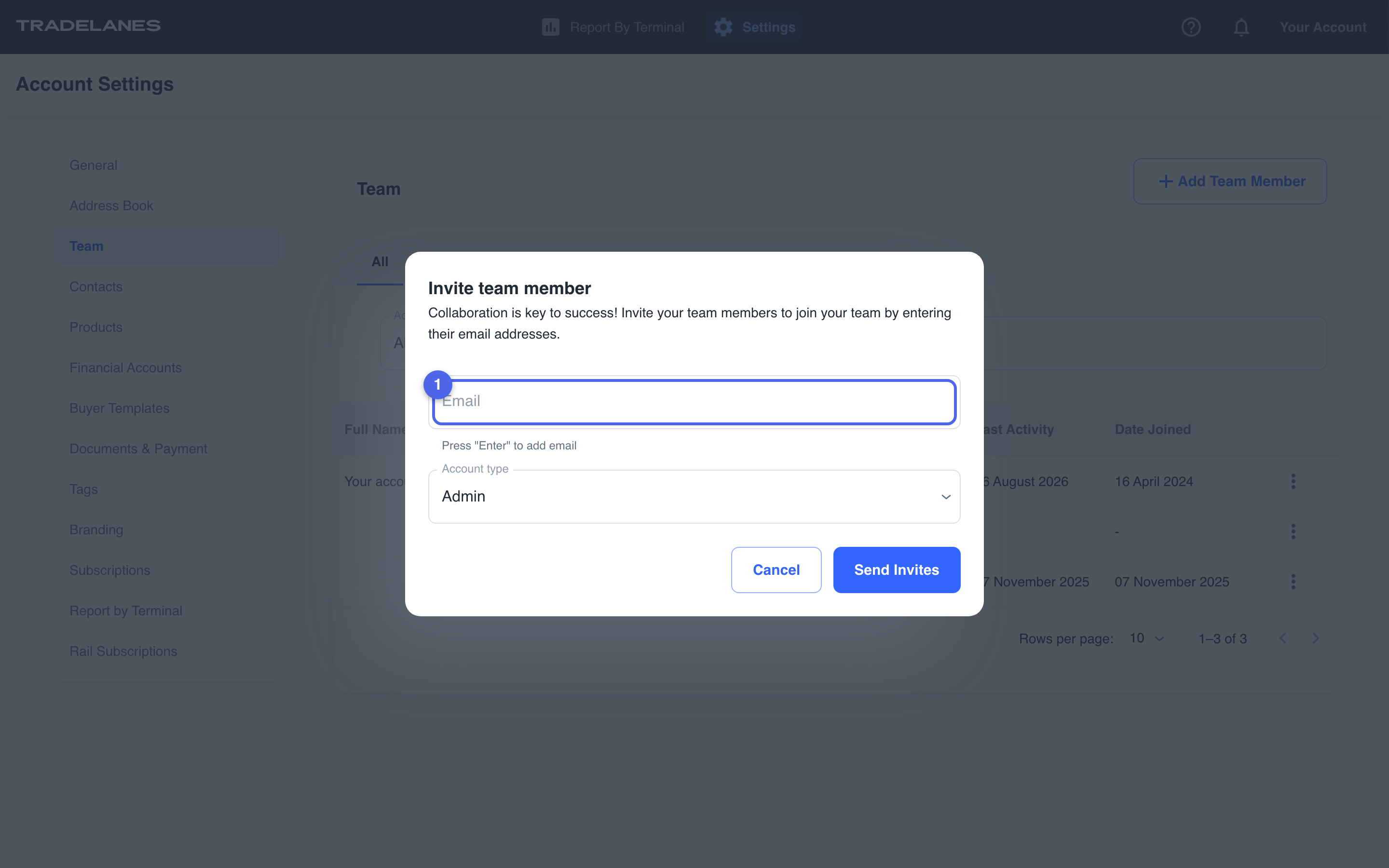
- Enter the teammate's email.
- Send the invite - they join your account directly.
After they join
- Each teammate sets up their own saved filters and default view - see the Filters and Saved Views guide.
- Everyone works from the same terminals and the same underlying data.